


Build and Install Debian 10 Buster
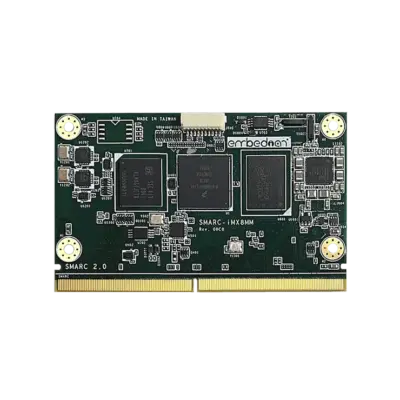
This guide provides a detailed walkthrough for building and installing the Debian 10 operating system on the Embedian SMARC-iMX8MM platform—a compact, high-performance SMARC module powered by NXP’s i.MX8M Mini quad-core processor. Designed for embedded applications requiring robust multimedia capabilities, machine learning acceleration, and industrial-grade reliability, the SMARC-iMX8MM is an ideal candidate for a customized Debian deployment.
Whether you’re developing industrial control systems, or multimedia interfaces, this guide will help you deploy Debian 10 on the SMARC-iMX8MM with confidence and precision. Our goal is to streamline your development process and provide a reliable foundation for your embedded Linux projects. The recommended host environment is Ubuntu 22.04.
Development Board
EVK-STD-CARRIER-S20 (universal carrier board for all SMARC 2.0 modules) from Embedian
Basic Resources
- AArch64 Cross Compiler
- ARM GNU aarch64: https://launchpad.net/linaro-toolchain-binaries
- Bootloader
- Das U-Boot – the Universal Boot Loader http://www.denx.de/wiki/U-Boot
- Source – http://git.denx.de/?p=u-boot.git;a=summary
- Linux Kernel
- NXP Linux Source Codes: https://github.com/nxp-imx/linux-imx.git
- Embedian Linux Source Codes: https://github.com/embedian/smarc-fsl-linux-kernel.git
Create build environment
Install required packages
On Ubuntu 22.04 machine:
$ sudo apt-get install binfmt-support qemu qemu-user-static debootstrap kpartx \
lvm2 dosfstools gpart binutils git lib32ncurses5-dev python-m2crypto gawk wget \
git-core diffstat unzip texinfo gcc-multilib build-essential chrpath socat libsdl1.2-dev \
autoconf libtool libglib2.0-dev libarchive-dev python-git xterm sed cvs subversion \
coreutils texi2html bc docbook-utils python-pysqlite2 help2man make gcc g++ \
desktop-file-utils libgl1-mesa-dev libglu1-mesa-dev mercurial automake groff curl \
lzop asciidoc u-boot-tools mtd-utils device-tree-compiler
Deploy Sources
Download archive containing the build script and support files for building Debian Buster
$ cd ~/
$ git clone https://github.com/embedian/debian-emb.git smarc_mx8mm_debian -b debian_buster_mx8mm
$ cd ~/smarc_mx8mm_debian
$ MACHINE=smarcimx8mm4g ./smarc_make_debian.sh -c deploy
With the build environment downloaded, we are ready to initiate the Debian 10 build process.
Notes
If the LPDDR4 is 2GB on your SMARC module, the MACHINE name will be smarcims8mm2g
Make Debian
Build all
The internet connection in your host PC has to be available.
$ cd ~/smarc_mx8mm_debian
$ sudo MACHINE=smarcimx8mm4g ./smarc_make_debian.sh -c all |& tee build.log
Notes
If the LPDDR4 is 2GB on your SMARC module, the MACHINE name will be smarcims8mm2g
Build by parts
Build bootloader
$ cd ~/smarc_mx8mm_debian
$ sudo MACHINE=smarcimx8mm4g ./smarc_make_debian.sh -c bootloader
Build Kernel, dtb files and kernel modules
$ cd ~/smarc_mx8mm_debian
$ sudo MACHINE=smarcimx8mm4g ./smarc_make_debian.sh -c kernel
$ sudo MACHINE=smarcimx8mm4g ./smarc_make_debian.sh -c modules
Build rootfs
$ cd ~/smarc_mx8mm_debian
$ sudo MACHINE=smarcimx8mm4g ./smarc_make_debian.sh -c rootfs
Pack rootfs
$ cd ~/smarc_mx8mm_debian
$ sudo MACHINE=smarcimx8mm4g ./smarc_make_debian.sh -c rtar
Setup SD Card Manually
For these instruction, we are assuming: DISK=/dev/mmcblk0, ”lsblk” is very useful for determining the device id.
$ export DISK=/dev/mmcblk0
Erase SD card:
$ sudo dd if=/dev/zero of=${DISK} bs=1M count=160
Create Partition Layout: Leave 2MB offset for boot file. With util-linux v2.26, sfdisk was rewritten and is now based on libfdisk.
(sfdisk)
$ sudo sfdisk –version
sfdisk from util-linux 2.34
Create Partitions:
(sfdisk >=2.26.x)
$ sudo sfdisk ${DISK} <<-__EOF__
2M,48M,0x83,*
50M,,,
__EOF__
Format Partitions:
for: DISK=/dev/mmcblk0
$ sudo mkfs.vfat -F 16 ${DISK}p1 -n boot
$ sudo mkfs.ext4 ${DISK}p2 -L rootfs
for: DISK=/dev/sdX
$ sudo mkfs.vfat -F 16 ${DISK}1 -n boot
$ sudo mkfs.ext4 ${DISK}2 -L rootfs
Mount Partitions:
On some systems, these partitions may be auto-mounted…
$ sudo mkdir -p /media/boot/
$ sudo mkdir -p /media/rootfs/
for: DISK=/dev/mmcblk0
$ sudo mount ${DISK}p1 /media/boot/
$ sudo mount ${DISK}p2 /media/rootfs/
for: DISK=/dev/sdX
$ sudo mount ${DISK}1 /media/boot/
$ sudo mount ${DISK}2 /media/rootfs/
Boot file is factory default flashed at on-module eMMC flash.
Install Boot File (output/imx-boot-sd.bin)
In some cases, when eMMC flash is erased or the u-boot is under development, we need a way to boot from SD card first. Users need to shunt cross the TEST# pin to ground. In this way, SMARC-iMX8MM will always boot up from SD card.
Write flash.bin to SD card.
~/smarc_mx8mm_debian
$ sudo dd if=output/imx-boot-sd.bin of=${DISK} bs=1024 seek=33
The <boot file> is pre-installed in on-module eMMC flash at factory default. SMARC-iMX8MM is designed to always boot up from on-module eMMC flash and to load Image, device tree blob and root file systems based on the setting of BOOT_SEL. If users need to fuse your own flash.bin or perform u-boot upgrade. This section will instruct you how to do that.
Copy <boot file> to the second partition home directory of your SD card and boot into SD card. Go to home directory and you should see flash.bin file.
~/smarc_mx8mm_debian
$ sudo cp -v output/imx-boot-sd.bin /media/rootfs/root/
Write imx-boot-sd.bin to the on-module eMMC flash. (The eMMC flash is emulated as /dev/mmcblk0 in SMARC-iMX8MM)
(root directory of device)
$ sudo dd if=imx-boot-sd.bin of=/dev/mmcblk0 bs=1024 seek=33
Notes
1. If your U-Boot is still under development and not yet finalized, it is recommended to short the test pin to ground and boot directly from the SD card (i.e., short TEST# to GND). Once U-Boot has been fully tested and finalized, you can write the image to the eMMC flash.
2. When the TEST# pin of the SMARC-iMX8MM is not shorted, the system will always boot from the on-module eMMC flash. U-Boot will read the BOOT_SEL configuration to determine where to load the kernel image and device tree blob. When the TEST# pin is shorted (pulled low), the system will always boot from the SD card.
Install uEnv.txt based bootscript
Copy uEnv.txt to the boot partition:
~/smarc_mx8_debian
$ sudo cp -v embedian/uEnv.txt /media/boot/
Install Linux Kernel Image
Copy Image to the boot partition:
~/smarc_mx8_debian
$ sudo cp -v output/Image /media/boot/
Install Linux Kernel Device Tree Binary
~/kirkstone-release/<build dir>/tmp/deploy/images/<machine name>/
$ sudo mkdir -p /media/boot/dtbs
$ sudo cp -v <device tree binary> /media/boot/dtbs/fsl-smarcimx8mm.dtb
All available DTB binary files are listed in the table below.
DTB FILENAME | DESCRIPTION |
fsl-smarcimx8mm.dtb | Device tree blob for SMARC-iMX8MM |
Notes
The device tree name in your SD card has be to fsl-smarcimx8mm.dtb
Install Root Filesystem
Extract the Yocto built root filesystem to your SD card
~/smarc_mx8_debian
$ sudo tar xvfz output/rootfs.tar.gz -C /media/rootfs
Notes
1. SMARC-iMX8MM always boots up from on-module eMMC flash first. The boot file in eMMC flash is factory pre-installed from Embedian. It will read the BOOT_SEL configuration that defined by SMARC specification on your carrier board and load Image and device tree blob from the partition one of the device (could be SD card, eMMC, GBE,..etc) that you selected.
2. MAC address is factory pre-installed at on board I2C EEPROM at offset 60 bytes. It starts with Embedian’s vendor code 10:0D:32. u-boot will read it and pass this parameter to kernel.
3. The kernel modules is included in the Yocto rootfs.
Remove SD card:
$ sync
$ sudo umount /media/boot
$ sudo umount /media/rootfs
Setup SD Card Automatically
This section tells you how to set up an SD card automatically. It mainly uses a script to do all the steps in the above section.
$ cd ~/smarc_mx8mm_debian
$ sudo MACHINE=smarcimx8mm4g ./smarc_make_debian.sh -c sdcard -d /dev/sdX
where ”/dev/sdX” is the SD block device in your host system. Shunt the ”TEST#” pin of your device to Ground. Insert the SD card and you will see SMARC-iMX8MM booting with Debian Buster. Console port is defined on SER3.
Selecting display configuration is a matter of selecting an appropriate DTB file.
All available DTB files are listed in the table below.
DTB FILENAME | DESCRIPTION |
fsl-smarcimx8mm.dtb | Device tree blob for SMARC-iMX8MM |
Build Results
The resulted images are located in ~/smarc_mx8mm_debian/output directory:
Image Name | Description |
rootfs.tar.gz | Root filesystem tarball for installation on SD card and eMMC |
Image | Linux Kernel Image |
imx-boot-sd.bin | Boot file for SD card and eMMC |
Linux Console Access
User Name | User Password | User Description |
root | root | system administrator |
user | user | local user |
x_user | used for X session access |
Setup eMMC
Shunt the TEST# pin to ground, then boot from your SD card. Run the following command as the root user.”
$ install_debian.sh
Modify the kernel configuration
To modify the kernel configuration (add/remove features and drivers). Please follow the step below.
$ cd ~/smarc_mx8mm_debian/src/kernel
$ sudo make arch=arm64 mrproper
$ sudo make arch=arm64 smarcimx8mm_defconfig
$ sudo make ARCH=arm64 savedefconfig
$ sudo cp arch/arm64/configs/smarcimx8mm_defconfig arch/arm64/configs/smarcimx8mm_defconfig.orig
$ sudo cp .config arch/arm64/configs/smarcimx8mm_defconfig
Follow the instructions above to rebuild kernel and modules, repack rootfs images and recreate SD card
Video Decoding
For playing video, we can use three solutions to support it.
1. $ gplay-1.0 <video file>
2. $ gst-launch-1.0 playbin uri=file://<video absolute path>
version 1.0a, 10/28/2024
Last updated 2024-10-28