


Building Android Oreo 10.0.0_1.0.0 BSP Distribution
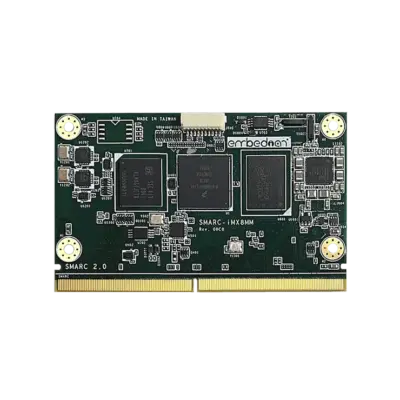
This document provides instructions for building and deploying Android 10 (Oreo) on the SMARC-iMX8MM platform. It is based on NXP’s IMX8M_Q10.0.0_1.0.0-GA release.
The host Linux machine is recommended Ubuntu 16.04 64 bit or Debian 9.6 64bit.
Once you have Ubuntu 16.04 LTS running, install the additional required support packages using the following console command:
$ sudo apt-get -y install git-core gnupg flex bison gperf build-essential zip curl zlib1g-dev gcc-multilib g++-multilib
$ sudo apt-get -y install libc6-dev-i386 lib32ncurses5-dev x11proto-core-dev libx11-dev lib32z-dev ccache libgl1-mesa-dev libxml2-utils
$ sudo apt-get -y install xsltproc unzip mtd-utils u-boot-tools lzop liblzo2-2 liblzo2-dev zlib1g-dev liblz-dev uuid uuid-dev android-tools-fsutils
Availability
SMARC-iMX8MM at Embedian.
Carrier Board
EVK-STD-CARRIER-S20 (universal carrier board for all SMARC 1.1 and 2.0 modules) at Embedian.
Basic Resources
- NXP Android OS for iMX Application Processors
- NXP official release: https://www.nxp.com/design/design-center/software/embedded-software/i-mx-software/android-os-for-i-mx-applications-processors:IMXANDROID
Install the OpenJDK
$ sudo apt-get update
$ sudo apt-get install openjdk-8-jdk
Update the default Java version by running:
$ sudo update-alternatives –config java
$ sudo update-alternatives –config javac
Notes
The build machine should have at least 50GB of free space to complete the build process.
Obtain Source Code
Get NXP’s Android Release Package
Go to NXP’s website, download Q10.0.0_1.0.0_ANDROID_SOURCE (filename: imx-android-10.0.0_1.0.0.tar.gz and put into your ~/downloads directory.
$ mkdir -p ~/android/smarcimx8mm/q_1000_100
$ cd ~/android/smarcimx8mm/q_1000_100
$ mkdir ~/bin
$ curl http://commondatastorage.googleapis.com/git-repo-downloads/repo > ~/bin/repo
$ chmod a+x ~/bin/repo
$ export PATH=~/bin:$PATH
$ mv ~/download/imx-android-10.0.0_1.0.0.tar.gz .
$ source imx-android-10.0.0_1.0.0/imx_android_setup.sh
After done, it will create an android_build directory. Go to this directory.
Clone Embedian’s U-Boot and Linux kernel sources
$ cd ~/android/smarcimx8mm/q_1000_100/android_build
$ mkdir -p vendor/embedian
$ cd vendor/embedian
$ git clone https://github.com/embedian/smarc-uboot.git uboot-imx -b smarc-8mm-q10.0.0_1.0.0_ga
$ git clone https://github.com/embedian/smarc-fsl-linux-kernel.git kernel_imx -b smarc-8mm-q10.0.0_1.0.0_ga
Apply Embedian’s patches for i.MX8M Mini platforms
$ cd ~/android/smarcimx8mm/q_1000_100/android_build/device
$ git clone git@git.embedian.com:developer/smarc-imx8m-android.git embedian -b smarc-8mm-q10.0.0_1.0.0_ga
$ embedian/scripts/install.sh
ARM Cross Compiler: GCC
To build Embedian’s SMARC-iMX8MM Android 10.0, you will need to install the following ARM GNU aarch64 compiler first:
$ wget -c https://developer.arm.com/-/media/Files/downloads/gnu-a/8.3-2019.03/binrel/gcc-arm-8.3-2019.03-x86_64-aarch64-linux-gnu.tar.xz
$ sudo tar -C /opt -xJf gcc-arm-8.3-2019.03-x86_64-aarch64-linux-gnu.tar.xz
$ export AARCH64_GCC_CROSS_COMPILE=/opt/gcc-arm-8.3-2019.03-x86_64-aarch64-linux-gnu/bin/aarch64-linux-gnu-
Build Android Images
Change to Android top level directory.
$ export MY_ANDROID=~/android/smarcimx8mm/q_1000_100/android_build
$ cd ${MY_ANDROID}
$ source build/envsetup.sh
$ export JAVA_HOME=/usr/lib/jvm/java-1.8.0-openjdk-amd64
$ export PATH=$JAVA_HOME/bin/:$PATH
$ lunch smarc_mx8mm-eng
or
$ lunch smarc_mx8mm-userdebug
$ ./imx-make.sh -j4 2>&1 | tee build-1.log
Notes
1. userdebug build creates a debuggable version of Android. eng build creates an engineering version of Android. Development mode enable and development tools are available on target.
2. The commands below can achieve the same result as «./imx-make.sh -j4 2>&1 | tee build-1.log«:
$ ./imx-make.sh bootloader kernel -j4 2>&1 | tee build-log.txt
# Build U-Boot/kernel with imx-make.sh first, but not to build Android images.
$ make -j4 2>&1 | tee -a build-log.txt
# Start the process of build Android images with «make» function.
Images created by the Android build for SMARC-iMX8MM system
The images created are located at out/target/product/smarc_mx8m/ directory.
Image | Description |
boot-smarcimx8mm.img | Boot image for SMARC-iMX8MM. It contains kernel, a part of ramdisk, and default kernel command line. |
dtbo-<dtb_feature>.img | Device Tree image for SMARC-iMX8MM to support different display output |
u-boot-imx8mm-smarc_2g.imx | Bootloader for eMMC/SD card boot for SMARC-iMX8MM-6-2G(-I) Other SMARC variants could be defined at device/embedian/imx8m/smarc_mx8mm/BoardConfig.mk |
u-boot-imx8mm-smarc_4g.imx | Bootloader for eMMC/SD card boot for SMARC-iMX8MM-6-4G(-I) Other SMARC variants could be defined at device/embedian/imx8m/smarc_mx8mm/BoardConfig.mk |
u-boot-imx8mm-smarc_2g-uuu.imx | Bootloader used by uuu for eMMC/SD card boot for SMARC-iMX8MM-6-2G(-I) Other SMARC variants could be defined at device/embedian/imx8m/smarc_mx8mp/BoardConfig.mk |
u-boot-imx8mm-smarc_4g-uuu.imx | Bootloader used by uuu for eMMC/SD card boot for SMARC-iMX8MM-6-4G(-I) Other SMARC variants could be defined at device/embedian/imx8m/smarc_mx8mp/BoardConfig.mk |
partition-table.img | GPT table image for 16GB SD card and eMMC. |
partition-table-7GB.img | GPT table image for 8GB SD card and eMMC. |
partition-table-28GB.img | GPT table image for 28GB SD card and eMMC. |
system.img | System image |
vbmeta-smarcimx8mm.img | Android Verified Boot metadata Image for SMARC-iMX8MM to support different display output |
product.img | Product image for SMARC-iMX8MM |
super.img | Super image generated from system.img, system_ext.img, vendor.img, and product.img. |
UUU Scripts
The table below describes the UUU scripts in android_q10.0.0_1.0.0. They are used with the UUU binary file to download the images above into SMARC-iMX8MM SMARC modules.
UUU Script Name | Function |
uuu-android-smarc-mx8mm-emmc.lst | Used with the UUU binary file to download image files into eMMC. |
uuu-android-smarc-mx8mp-sd.lst | Used with the UUU binary file to download image files into SD card. |
uuu_android_smarc_flash.bat | Script to generate lst file on Windows OS |
uuu_android_smarc_flash.sh | Script to generate lst file on Linux OS |
Setup SD Card
Prepare for an SD card and insert into your Linux host PC.
$ cp smarc-mksdcard.sh out/target/product/smarc_mx8mm/
$ cd out/target/product/smarc_mx8mm/
$ chmod a+x smarc-mksdcard.sh
$ sudo ./smarc-mksdcard.sh -f smarcimx8mm -e <lpddr4_feature> /dev/sdX; sync
<lpddr4_feature> | 2g If the LPDDR4 memory capacity on your module is 2GB. 4g If the LPDDR4 memory capacity on your module is 4GB. |
Notes
1. The minimum size of the SD card is 8 GB.
2. /dev/sdX, the X is the disk index from ‘a’ to ‘z’. That may be different on each computer running Linux OS.
3. If the SD card is 16 GB, use «sudo ./smarc-mksdcard.sh -f smarcimx8mm /dev/sdX» to flash images.
4. If the SD card is 8 GB, use «sudo ./smarc-mksdcard.sh -f smarcimx8mm -c 7 /dev/sdX» to flash images.
5. If the SD card is 32 GB, use «sudo ./smarc-mksdcard.sh -f smarcimx8mm -c 28 /dev/sdX» to flash images.
If primary display set to HDMI, a VESA standard HDMI display need to be connected before booting up.
Insert the SD card into your device, set the BOOT_SEL to «ON OFF OFF» and shut cross the TEST# pin to Ground. You will be able to see Android booting up. For eMMC boot, leave the TEST# floating and the BOOT_SEL should be set as «OFF ON ON». The next section will instruct you to flash eMMC.
Setup eMMC
Setup eMMC for Android is a bit complex, but trivial. There are a couple of ways to achieve it.
Use UUU
UUU can be used to download all images into a target device. It is a quick and easy tool for downloading images. See the AndroidTM Quick Start Guide (AQSUG) for detailed description of UUU.
Make sure that the FORCE_RECOV# pin has to be shunt to Ground to enter into CPU serial download mode when using this tool. Connect USB0 min-B port of the device to your host computer.
Copy anduuu.exe, u-boot-imx8mm-smarcimx8mm-2g.imx, u-boot-imx8mm-smarcimx8mm-4g.imx, u-boot-imx8mm-smarcimx8mm-2g_uuu.imx, u-boot-imx8mm-smarcimx8mm-4g_uuu.imx, partition-table.img, boot.img, vbmeta-smarcimx8mm.img, system.img, vendor.img, dtbo-smarcimx8mm and uuu-android-smarc-mx8mm-emmc.lst uuu_android_smarc_flash.bat into the same folder.
Notes
1. Make sure the module LPDDR4 memory capacity in the file of uuu-android-smarc-mx8mm-emmc.lst
After done, make sure that FORCE_RECOV# and TEST# pins are floating. Change the BOOT_SEL to OFF ON ON and the module will boot up from eMMC.
Use a Ubuntu 22.04 Bootable SD card
The second way that we also recommend is to make a bootable Ubuntu 22.04 SD card for SMARC-iMX8MM. User go to our Linux Development Site to learn how to make a bootable Ubuntu 22.04 SD card. An pre-built images can be downloaded from our ftp site. Users can download those images and follow the «Setup SD card» section from our Linux development site. Once it done, you can copy the smarc-mksdcard.sh script and all Android images (u-boot-imx8mm-smarcimx8mm-2g.imx, u-boot-imx8mm-smarcimx8mm-4g.imx, partition-table.img, boot.img, vbmeta-smarcimx8mm.img, system_raw.img, vendor_raw.img, dtbo-<name>, smarc-mkemmccard.sh) into your home directory. Follow exactly what you did for SD card, but now, eMMC device will be emulated as /dev/mmcblk0.
Insert the bootable SD card into SMARC-iMX8MM and shunt TEST# pin to GND. Power up the device and run:
$ sudo ./smarc-mkemmccard.sh -f smarcimx8mm -e <lpddr4_feature> /dev/mmcblk0; sync
<lpddr4_feature> | 2g If the LPDDR4 memory capacity on your module is 2GB. 4g If the LPDDR4 memory capacity on your module is 4GB. |
Power off and set BOOT_SEL to «OFF ON ON», leave the TEST# pin floating and you will be able to boot up your Android from on-module eMMC.
Android Recovery Mode
Enter board in Android Recovery mode
Shunt LID# pin to ground will enter Android Recovery mode.
Update Android Firmware
Generate OTA Packages
For generating «OTA» packages, use the following commands:
$ cd ${MY_ANDROID}
$ make PRODUCT=smarc_mx8mm-userdebug -j4 otapackage 2>&1 | tee build1-1.log
Install OTA Packages to device
- Enter to Android Recovery mode
- Select menu item «apply update from ADB»
- To the host system, perform the following command:
$ out/host/linux-x86/bin/adb sideload out/target/product/smarc_mx8mm/smarc_mx8mm-ota-<data>-<name>.zip
smarc_mx8mm-ota-${date}.zip includes payload.bin and payload_properties.txt . The two files are used for full update.
Reboot the device.
Note
Real example name for OTA package: out/target/product/smarc_mx8mm/smarc_mx8mm-ota-20180416-imx8mm-smarc-hdmi.zip
Manual Operations
Manually Build boot.img
When you perform changes to the kernel, you may build boot.img solely instead of building the whole Android.
$ cd ${MY_ANDROID}
$ source build/envsetup.sh
$ export JAVA_HOME=/usr/lib/jvm/java-1.8.0-openjdk-amd64
$ export PATH=$JAVA_HOME/bin/:$PATH
$ lunch smarc_mx8mm-eng
or
$ lunch smarc_mx8mm-userdebug
$ make bootimage
Manually build Bootloader
$ cd ${MY_ANDROID}
$ source build/envsetup.sh
$ export JAVA_HOME=/usr/lib/jvm/java-1.8.0-openjdk-amd64
$ export PATH=$JAVA_HOME/bin/:$PATH
$ lunch smarc_mx8mm-eng
or
$ lunch smarc_mx8mm-userdebug
$ ./imx-make.sh bootloader -j4
It will generate files.u-boot.imx, u-boot-smarcimx8mm_2g.imx, u-boot-marcimx8mm_2g_uuu.imx, u-boot-smarcimx8mm_4g.imx, and u-boot-smarcimx8mm_4g_uuu.imx
Manual build Android Linux Kernel and modules
$ cd ${MY_ANDROID}
$ source build/envsetup.sh
$ export JAVA_HOME=/usr/lib/jvm/java-1.8.0-openjdk-amd64
$ export PATH=$JAVA_HOME/bin/:$PATH
$ lunch smarc_mx8mm-eng
or
$ lunch smarc_mx8mm-userdebug
$ ./imx-make.sh kernel -j4
The kernel images are found in ${MY_ANDROID}/out/target/product/smarc_mx8mm/obj/KERNEL_OBJ/arch/arm64/boot/Image
version 1.0a, 10/28/2024
Last updated 2024-10-28